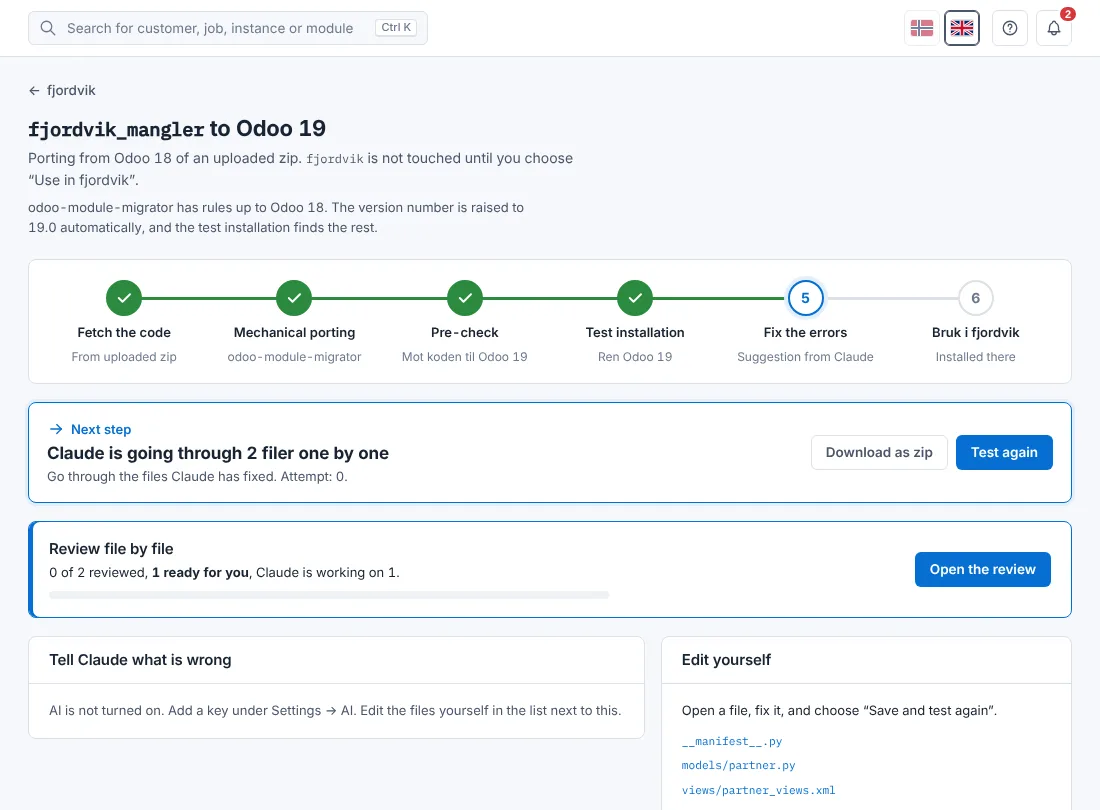
If an own module does not exist for the target version, you press Port and test on Odoo … in the module check:
- The panel fetches the code from the customer's repo (the branch 19.0-portering if it exists, otherwise the old version).
- odoo-module-migrator makes the changes that are always needed between versions.
- Pre-check: all the files are checked against the source code of the target version, which the panel fetches from the Odoo image. Dependencies, models (also from CSV file names), fields in views, XML IDs such as base.group_user and imports are looked up. If it finds errors, Claude gets the whole list and excerpts from Odoo's code, and fixes everything in one suggestion before the test installation is run. “Test anyway” runs the test regardless, if the check is wrong.
- The module is test-installed in a clean Odoo on the target version. Everything is cleaned away afterwards.
- If it fails, you see the error in short (“file: what is wrong”), and Claude suggests changes as a diff with file and line. Tick and press “Use the selected and test again”. Repeat until the module installs.
- Save as branch pushes everything to 19.0-portering. “Download as patch” always works.
Review file by file. When the pre-check or the test finds errors, Claude takes one file at a time and makes a new version of it. You see the changes in red (removed) and green (put in its place), with line numbers and a short explanation. For each file you choose:
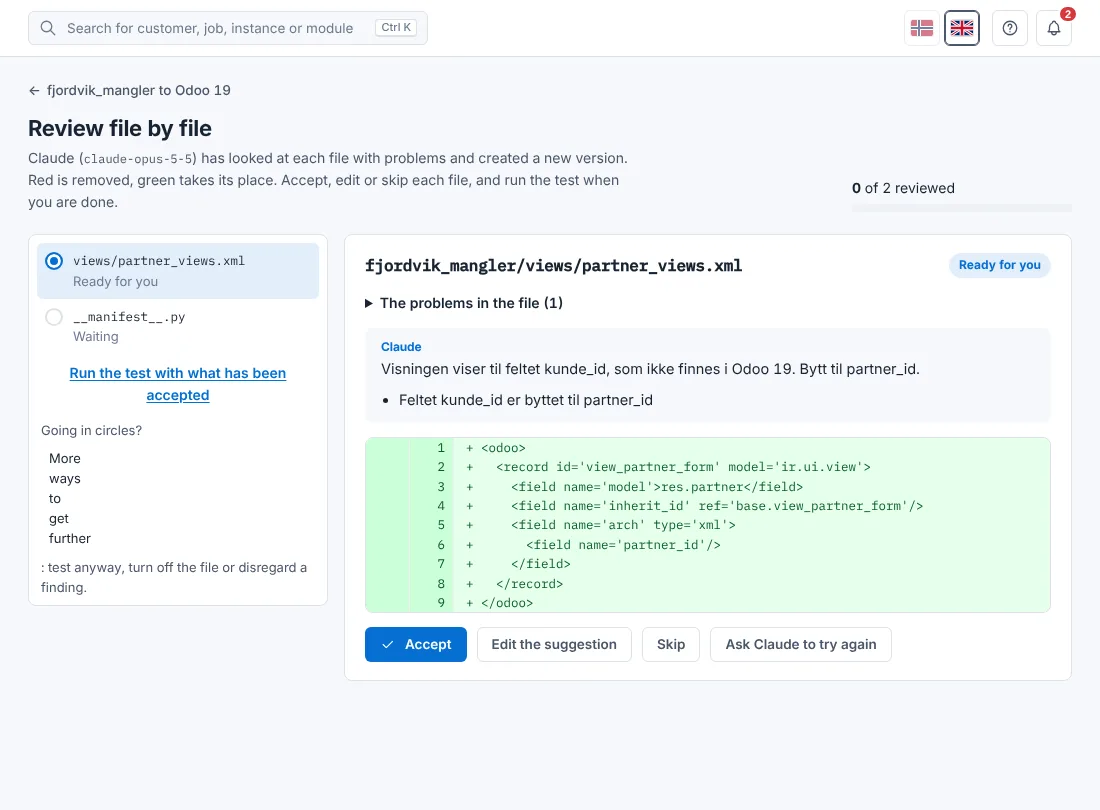
- Accept: the suggestion is used. If Claude suggests a new file name, it is done at the same time.
- Edit the suggestion: fix the suggestion the way you want it, and save your version.
- Skip: the file is kept as it is.
- Ask Claude to try again: preferably with a message for exactly that file, for example what a field is called now.
You can start on the files that are ready while Claude works on the rest. When all have been reviewed, you press Run test now. Then the module is checked against the target version again and test-installed. If errors remain, a new review starts with only those files.
Model. The porting uses its own model, which you choose under Settings → AI (default claude-opus-5-5), because it is stronger on code across files and versions. Chat and explanations have a model of their own. If the porting model is not available for the API key, the chat model is used instead. The model is shown at the top of the review and in the log.
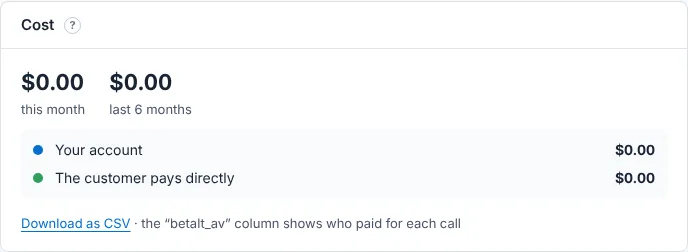
What Claude costs. Each call to Claude is stored with tokens, model and what it concerned, and the cost is calculated from the prices under Settings → AI. You see it on each porting, in the “Claude” column under Module porting, per customer on the customer page, and per month under Settings → AI, with CSV for invoicing. Connect the instance to a customer under Settings on the instance (the stagings inherit it), and the cost is booked to the right customer. A customer can have its own API key, either from a separate workspace in your Anthropic account or from the customer's own account. It is stored encrypted, used for everything Claude does for the customer, and tested when you save it.
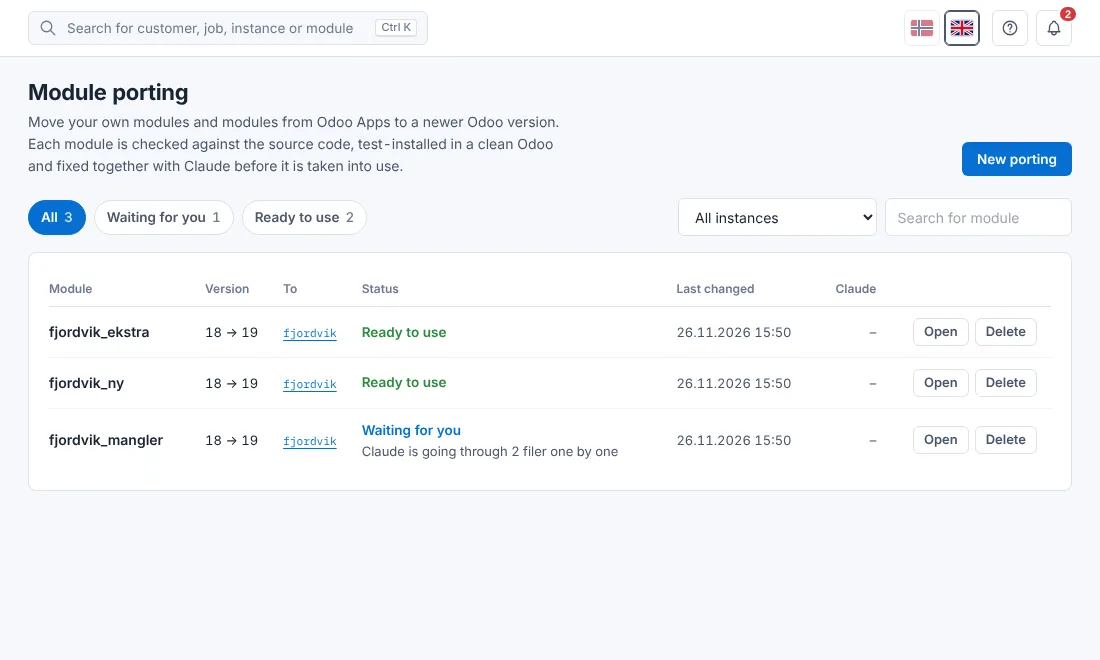
Module porting in the menu. All portings are gathered under “Module porting”. There you start a new porting (zip and instance), filter on status, instance and module name, and delete portings you do not need. When you port the same module several times, only the newest and the one that has been put into use are shown. The others are under “Older attempts” and can be deleted together. Deleting a porting removes the working copy and the log, not the module in the instance. The number in the menu shows how many are waiting for you.
Errors after the module has been put into use. The test installs the module in an empty Odoo, so some errors only come when it is used with real data. Open the porting (or “Report error” at the module on the instance), paste the error from Odoo, or press “Fetch the latest error from the log”. Feel free to write what you did when it came. Claude goes through the files the error points to, you accept the changes, and then you test and put the module into use again. The module is updated in the instance, not installed again.
Not getting anywhere? If the same error remains after several checks, the card “Not getting anywhere?” appears with three ways out:
- Test anyway: the pre-check is a lookup in the source code and can be wrong. The test installation in a real Odoo is the answer.
- Turn off the file: a view or data file that fails is taken out of “data” in the manifest. The module is installed without it, the file stays, and you turn it on again under “Files that are turned off”.
- Disregard a finding: it is no longer counted, and the test is run when the rest are gone. “Include again” undoes it.
If a view inherits from a view that does not exist in the target version, the check shows which views the model actually has there, and which is most likely the replacement. Claude gets the code of that view.
Stuck? Under the suggestions there are two ways to get further:
- Tell Claude what is wrong: write what you know, for example what a model is called in the new version. Claude gets your message, the error and all the files, can ask to see more files, and can also create, move and delete files. You see all the changes before anything is used.
- Edit yourself: open a file, fix it in the editor and choose Save and test again. You can also create new files, rename and delete. Ctrl+S saves.
The error shows which data file Odoo was loading when it stopped, also for CSV and XML files, so you see where to look.
The test installation uses a ready-made database with base installed, and repos that have been fetched once are reused in later attempts. The first test for an Odoo version takes a little longer, because the template is made then.
The main branches are never touched. Merge the branch into 19.0 when you have looked through it, and the module is fetched on the next run. That the module installs does not mean it does the right thing: test it in a staging.
Uploaded modules for a different version. If you upload a zip under “Apps and addons” on an instance, the panel reads the version in the manifest. If the module is made for an older Odoo than the instance runs, for example 19 when the staging runs 20, it is not put in right away. You choose:
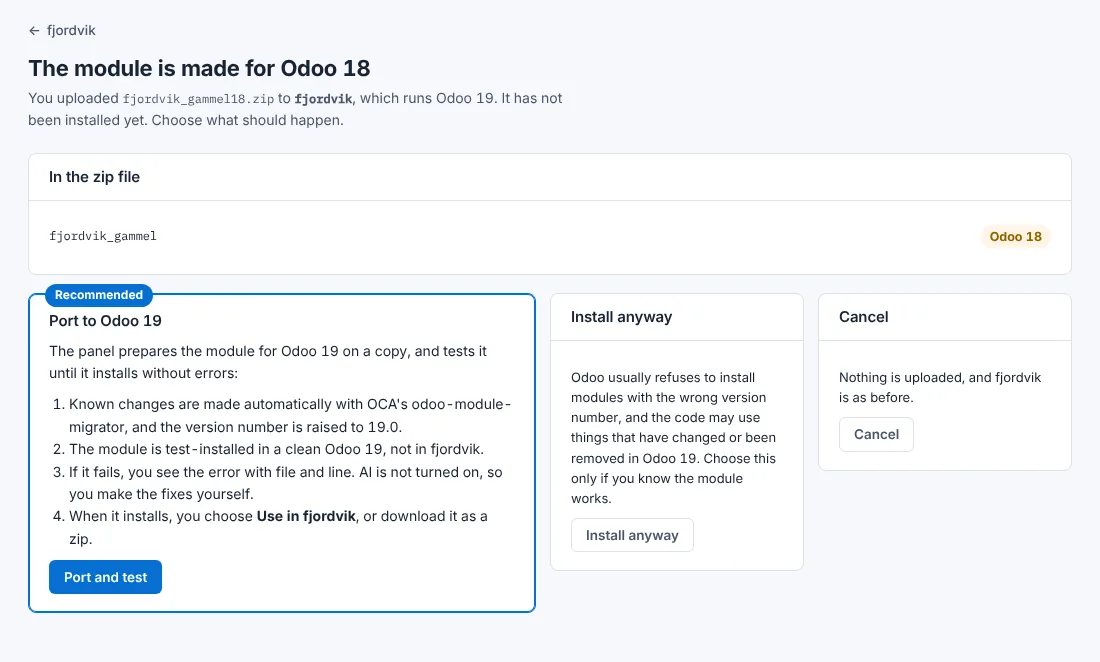
- Port and test: the same route as above, but from the zip file. When the module installs in a clean Odoo, you press Use in …, and the ported module is uploaded to the instance and installed. You can also download it as a zip.
- Install anyway: puts it in as it is. Only if you know it works.
- Cancel: nothing is changed.
odoo-module-migrator has rules up to Odoo 19 for now. For Odoo 20 the panel raises the version number itself, and the test installation and Claude find the rest. The portings are under “Apps and addons” on the instance, so you can find them again.